ACE Money Transfer
ACE Money Transfer

29 Jul 2025
If you've ever wondered whether you can PayMaya send money to GCash, the answer is a clear yes. This guide walks you through everything you need to know - fees, limits, step-by-step instructions, and how to handle failed transfers.
Yes, you can send money from Maya (formerly PayMaya) to GCash using the bank transfer feature powered by InstaPay. InstaPay allows real-time fund transfers between digital wallets in the Philippines, meaning your recipient can receive funds in their GCash wallet almost instantly, 24/7.
The process works like any standard bank transfer. You select GCash as the destination e-wallet, enter the recipient's mobile number, and confirm the amount. Transfers from PayMaya to GCash use InstaPay and are processed instantly under normal conditions, though occasional delays can happen during system maintenance or network congestion.
The transfer fee for PayMaya to GCash is ?15 per successful transaction, deducted from the sender's Maya wallet on top of the amount being sent. The recipient does not pay any fee to receive the funds. GCash is the most widely used mobile wallet in the Philippines - accepted at over 139,000 merchants nationwide - so this transfer route is one of the most practical ways to move money between platforms. PayMaya also offers advanced digital banking features, QR payments, and services beyond simple transfers, but sending to GCash remains one of its most popular functions.
Maya Philippines Inc. and Maya Bank Inc. are regulated by the Bangko Sentral ng Pilipinas, the same authority that oversees GCash. Both GCash and PayMaya transfers are processed instantly under this regulatory framework.
Before you transfer money between these two digital wallet platforms in the Philippines, make sure both the sender and recipient meet a few basic requirements.
Sender requirements (Maya side):
An active Maya account with enough maya wallet balance to cover the transfer amount plus the ?15 InstaPay fee.
Account verification on Maya requires ID and a video selfie. Basic Maya accounts have a ?50,000 monthly wallet balance limit. Upgrading unlocks higher limits - Ultimate Maya accounts can hold up to ?5,000,000.
A stable internet connection or mobile data, an updated Maya app version, and access to the SIM on your mobile device that receives OTPs.
Recipient requirements (GCash side):
An active GCash account, ideally fully verified. Unverified GCash accounts can only receive ?5,000 monthly, while fully verified GCash accounts can receive up to ?100,000 monthly. GCash Plus accounts can receive up to ?500,000 monthly.
Both sender and recipient must have verified accounts to avoid hitting restrictive wallet limit caps and failed transactions.
GCash verification can take up to 3 days to complete, so the recipient should handle this well before the transfer.
You can register for a free account on either platform, but you'll want to upgrade and complete verification early if you plan to send or receive larger amounts.
Accurate recipient details are crucial for successful transfers to GCash. Getting even one digit wrong can send your money to the wrong person.
The main detail required is the recipient's GCash-registered 11-digit mobile number (e.g., 09XXXXXXXXX). The recipient's GCash mobile number serves as the account number for transfers - there is no separate bank-style account number to input.
In some cases, the Maya app will ask for the recipient's full name as it appears on their GCash profile. Always confirm the account details directly with the recipient beforehand.
Wrong or incomplete details can cause a transfer to fail, get delayed, or - worst case - land in someone else's GCash account, which may be difficult to recover.
If this is your first time sending to a particular GCash recipient, send a small test amount (?50–?100) first. The key difference between this and other payment methods like cash pickup is that digital transfers are harder to reverse once completed.
PayMaya was rebranded to Maya in 2022, but the bank transfer option and overall flow remain similar. Here's how to send GCash funds from your Maya wallet:
Users must log in to the Maya app to initiate a transfer to GCash. Open the app and check your available balance on the home screen.
Tap the "Bank Transfer" or "Transfer" option. In older PayMaya versions, you would tap bank transfer from a similar menu. Scroll through the list of banks and e-wallets, then select "GCash" as the destination.
Enter the required information: recipient name, GCash mobile number, and transfer amount. You can also add optional notes or purpose.
Review the transaction summary. The screen will show the ?15 InstaPay fee and total deduction from your Maya wallet. Tap "Send" or "Confirm."
A one-time PIN is required to confirm the transfer. Maya sends this OTP via SMS to the mobile number linked to your Maya account. Enter it to authorize.
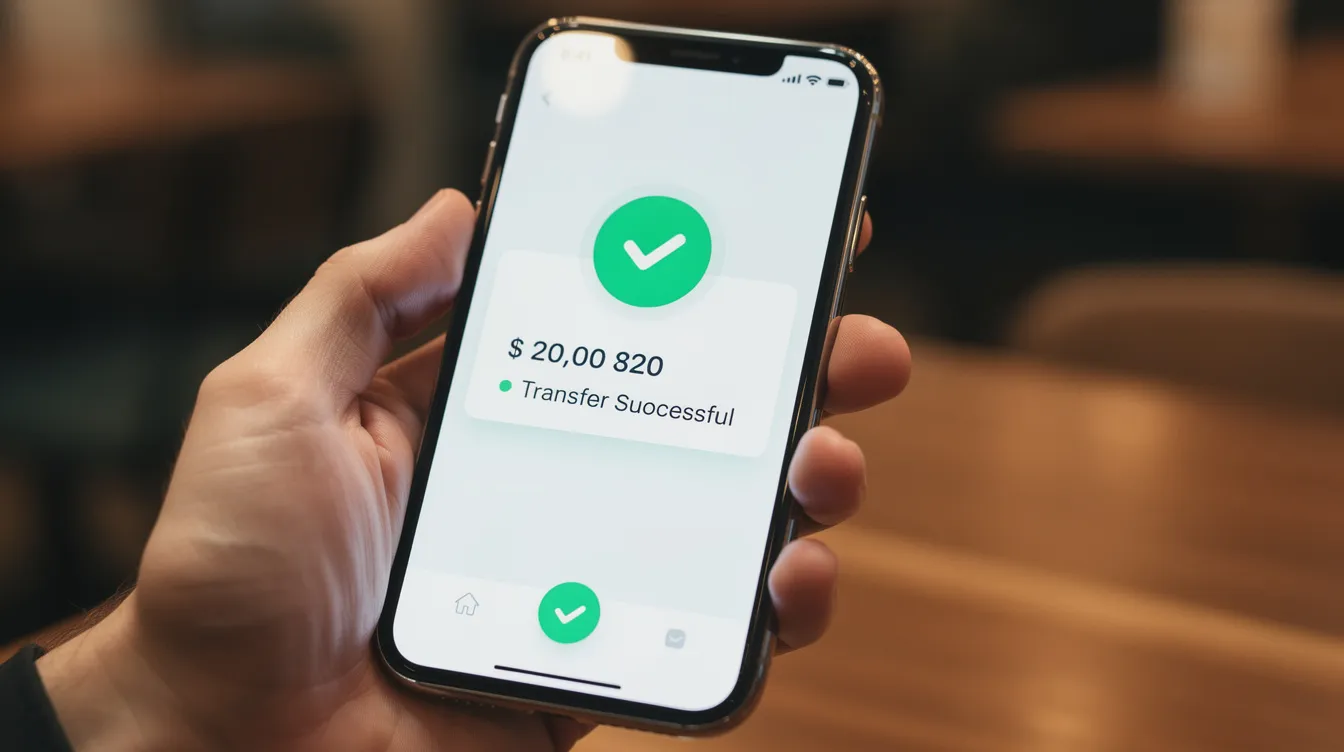
After confirmation, you'll see an in-app message confirming the transfer along with a reference number and transaction details. Take a screenshot for your records.
Funds typically arrive within seconds after transfer. The recipient can check their GCash app's transaction history to confirm the money has arrived. They should receive GCash instantly under normal conditions.
Understanding fees and limits before you transfer funds helps you avoid surprises and failed transactions.
| Detail | Amount / Info |
|---|---|
| InstaPay fee per transfer | ?15 (charged to the sender) |
| Per-transaction limit | Up to ?50,000 via InstaPay |
| Basic Maya monthly cap | ?50,000 |
| Ultimate Maya wallet cap | Up to ?5,000,000 |
| Unverified GCash monthly receive | ?5,000 |
| Fully verified GCash monthly receive | ?100,000 |
| GCash Plus monthly receive | ?500,000 |
| GCash daily receive (after 2 weeks verified) | ?50,000 |
| Processing time | Near-instant, 24/7 |
Maya charges ?15 per InstaPay transaction. This fee applies to the sender's digital wallet only - the recipient pays nothing. You can send multiple transfers per day as long as you stay within your monthly Maya account limits.
On the GCash side, fully verified GCash accounts can receive up to ?100,000 monthly, while GCash users can receive ?50,000 daily after two weeks of verification. If the recipient has reached their limits, the transfer may fail.
Standard processing via InstaPay is near-instant, but delays of up to a few hours can occur during high traffic or system maintenance. Always check the latest limits and fees from within the Maya app or official support pages, as these can change. You can also manage your sending limits by upgrading your verification tier.
While sending money from Maya to GCash is usually smooth, issues can still come up. Here are the most common reasons a transfer fails or gets delayed:
Incorrect GCash mobile number entered
Insufficient Maya wallet balance (including the fee)
Exceeded wallet or monthly limits on either platform
Unverified or blocked GCash account on the recipient's end
Network or system downtime on Maya or GCash
If a transfer fails, Maya typically reverses the amount back to the sender's Maya wallet. The ?15 fee may be non-refundable depending on the cause. Always double check recipient details before confirming.
What to do if funds don't arrive:
Wait up to 24 hours if the status shows "processing."
Contact Maya support through the in-app chat or reach their domestic toll-free hotline with your reference number ready.
The recipient can also log into GCash and contact GCash Support with the same reference number to check for posting delays.
Never share your OTP with anyone. Only use the official Maya and GCash apps on your mobile device to process transfers.
Whether you need to send money to a friend, pay for services, or transfer money from Maya to a bank or other banks, keeping your data secure and your account details accurate makes all the difference. Unlike USD-denominated international remittance, this local process is designed to be fast, low-cost, and straightforward - no bank accounts at other institutions required.
Did you find this article helpful? Bookmark this guide so you always have the complete process, fees, and limits at your fingertips the next time you need to create and complete a Maya-to-GCash transfer.