ACE Money Transfer
ACE Money Transfer

13 Jan 2025
Whether you're building a product page for a German storefront, writing an invoice in Dublin, or simply texting a friend about a €50 dinner in Madrid, knowing how to type and format the euro symbol correctly matters. This guide covers everything from keyboard shortcuts on every device to placement rules, encoding details, and formatting best practices.
The euro sign (€) is the official currency symbol of the euro, the single currency introduced in 1999 for electronic transactions and in widespread cash circulation since 1 January 2002 across the eurozone. As of mid-2026, the euro is used by 20 of the 27 European Union member states, plus several non-EU territories like Monaco, Andorra, Kosovo, and Montenegro. The euro is divided into 100 cents and carries the ISO code EUR, which is the standard reference in banking, forex markets, and plain-text systems where the graphical symbol cannot be displayed.
The design of the euro symbol is rooted in the Greek letter epsilon (?), combined with the first letter "E" for Europe. Two parallel lines cross the curved shape horizontally, and these two horizontal lines represent the stability of the euro currency. The European Commission defined these design elements in 1995 to signal that the euro represents a strong and reliable common currency - one that serves as a tangible symbol of European integration and is now one of the world's leading reserve currencies. The euro symbol is designed to foster economic stability and ease trade across borders.
For anyone publishing prices online, using the correct euro sign in titles, meta descriptions, and product listings improves clarity for users in European markets and helps search engines interpret currency correctly. When the graphical symbol isn't available, the three-letter code EUR works as a reliable substitute in financial systems and structured data.
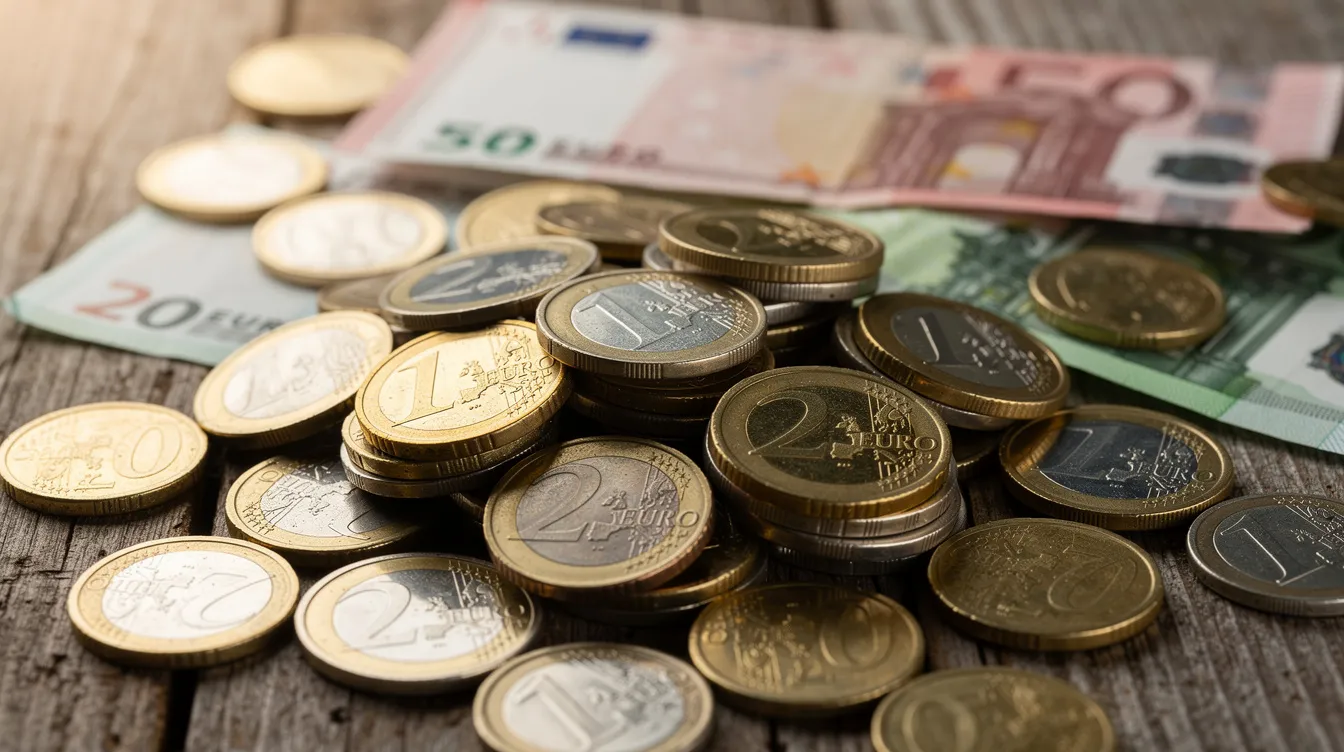
There is no single universal rule for placement of the euro symbol - it depends on the language and national style guide of your intended audience. The European Union's style guide places the euro sign before the amount in English, with no space, mirroring conventions for other currencies like the dollar sign. So in English contexts, you would write €10 or €1,250.00, and the euro sign has no space before the amount.
In many European languages, however, the euro sign appears after the amount, typically separated by a space. French writers use "10 €" or "10,50 €", German convention follows the same pattern with "10,00 €", and Spain uses similar post-number placement. Ireland typically writes €10 in line with English-language norms, while Finland may allow both placements depending on whether the context is formal Finnish or Swedish-language text. Prices under one euro may use local abbreviations like ct. or c. (for example, "50 ct." in Germany).
For legal documents, financial affairs reporting, or invoices, follow the style recommended by your country's central bank or the relevant EU publication standard. The most important rule is consistency: pick one style based on your audience and apply it uniformly across every page, invoice, or report on your site.
Windows offers several ways to type the euro symbol, and the method works best for you will depend on your keyboard layout, language pack, and whether your device has a numeric keypad.
Keyboard shortcuts. On many European keyboards, pressing AltGr + E produces the euro sign directly, since the E key on these layouts has the € character mapped as an alternate. On some configurations, Ctrl + Alt + E or Ctrl + Alt + 4 achieves the same result. The exact behavior can vary by language pack - a German layout may respond differently than a Spanish one - so check your keyboard settings if the expected shortcut doesn't respond.
Alt code with number pad. The classic alt code for the euro sign works regardless of your layout: press and hold the Alt key, type 0128 on the numeric keypad (with Num Lock enabled), then release the alt key. The result is €. This method only works with the dedicated numeric pad on the right side of a full-size keyboard, not with the number row above the letters.
For laptops without a dedicated number pad, you can enable the embedded numeric keypad by pressing Fn + NumLk, which maps certain letter keys (typically J, K, L, M, U, I, O) to number pad digits. Then use Alt + 0128 with those keys. Alternatively, switch your keyboard layout to US-International or another layout that includes a direct euro shortcut. On some US keyboards without any euro shortcut, the Alt + 0128 alt code remains the most reliable option for occasional use.

Alt codes are numeric shortcuts on Windows that let you insert special characters like the euro sign via the numeric pad. Here is the step-by-step process: first, ensure Num Lock is turned on. Then press alt and hold it down. Type 0128 on the number pad. Release the alt key, and € appears at your cursor.
This is the most widely supported alt code for the euro sign in modern Windows systems, tied to Unicode U+20AC. The Unicode Consortium allocated the euro sign codepoint in 1998, and the decimal value 128 in the Windows-1252 codepage has been standard ever since. Older code page positions from legacy systems are best avoided, as they may produce incorrect characters when files move between platforms.
A few practical notes: on compact keyboards without a numeric keypad, this method may be impossible unless you activate an embedded numpad. Some applications - particularly certain remote desktops or secured browser fields - may ignore alt codes entirely if they override keyboard input. In those situations, copy and paste from another source is a dependable fallback.
It helps to understand the difference between an alt code and a keyboard shortcut. An alt code always uses the numeric keypad plus the alt key and is layout-independent. A keyboard shortcut combines letter or symbol keys with modifiers like Ctrl, Alt, or AltGr, and depends entirely on your active layout and language configuration.
On a mac, typing the euro sign is straightforward once you know which keyboard layout you're using. macOS offers layout-dependent shortcuts as well as a universal character picker.
On many UK and Ireland layouts, press Option (?) + 2 to produce €. On the typical US layout, press Option (?) + Shift (?) + 2 instead. If you're unsure which layout is active, try both - one of them will typically work. Shortcut example: ? + ? + 2 ? €.
In some non-US European layouts - German, French, Italian, or Spanish - the euro sign may be mapped to other key combinations, such as Option + E. You can check your exact mapping by opening System Settings ? Keyboard ? Input Sources, which displays every special character available on your current layout.
For a universal fallback, macOS offers the Character Viewer. Press Control + Command (?) + Space to open it, then type "euro" in the search box. Double-click the euro symbol in the results to insert it directly into your active text field. This method works across all apps on your device.
Once you've typed or inserted € anywhere, you can simply copy and paste it freely between applications. For one-off uses, this is often the fastest approach.
Both iPhone/iPad and android keyboards include the euro sign in their symbol menus, regardless of your language settings.
On iOS, open any app with a keyboard - Messages, Mail, Safari - and tap the 123 key to switch from letters to the numbers and symbols layout. If the € key is visible, tap it directly. Otherwise, press and hold the dollar sign ($) key, and a pop-up will appear showing other currencies. Slide your finger to € and release to insert it into your message or document.
The pattern on android is similar. Tap ?123 or the symbol key to open the symbols layout. On many layouts, press and hold the $ key or another currency symbol to reveal €, £, ¥, and other currencies. On some European android keyboards, the € key appears directly on the first symbol screen without needing a long-press.
Changing the keyboard language to an EU language like German, French, or Spanish typically makes the euro symbol more prominent - sometimes placing it right on the main symbol page. For heavy mobile users, consider adding a text replacement shortcut in your keyboard settings. For example, set ":eur" to auto-replace with € in iOS Settings ? General ? Keyboard ? Text Replacement, or the equivalent in your android keyboard app.
Word processors and online editors provide menu-based symbol insertion for situations where keyboard shortcuts or alt codes aren't convenient - or when you simply can't remember the right key combination.
In Microsoft Word on both Windows and Mac, navigate to Insert ? Symbol ? More Symbols. In the dialog box, locate the euro symbol (€) from the currency subset and click Insert. Word may also auto-correct certain typed sequences like "EUR " into € depending on your language and autocorrect settings. On Windows, you can also type "20AC" in the document and immediately press Alt+X to convert it into €, provided the font supports that Unicode character.
In Google Docs, go to Insert ? Special characters, then type "euro" in the search box or draw the symbol shape in the drawing panel. Click the € result to insert it at your cursor. Google Sheets, Slides, and other Google Workspace tools support similar dialogs and also accept copy-paste from any external source.
Other office tools like Excel, PowerPoint, and LibreOffice follow comparable insertion workflows. For web developers working in HTML or code editors, you can use the entity € or the Unicode escape € (which references U+20AC) to safely render the euro sign on any web page. Just make sure your page is served with UTF-8 encoding so the character displays correctly across browsers.
Modern operating systems, browsers, and applications represent the euro sign using Unicode, which ensures consistent display across devices, platforms, and languages. The euro symbol is represented in Unicode as U+20AC, officially named "EURO SIGN." In UTF-8 encoding, this translates to the three-byte sequence 0xE2 0x82 0xAC.
In the late 1990s, before Unicode became dominant, different vendors placed the euro symbol in different positions within their proprietary codepages. Windows-1252 assigned it to position 0x80, while MacRoman and various ISO 8859-x revisions handled it differently or not at all. This caused garbled characters when files moved between Apple, Microsoft, and Unix systems - a common headache during the euro's early years.
With the widespread adoption of UTF-8 by browsers, operating systems, and office suites throughout the 2000s and 2010s, these compatibility problems largely disappeared. Today, virtually every modern system defaults to UTF-8 and includes fonts with the euro glyph.
For web developers, the safest approach is to use UTF-8 encoding for all pages and declare <meta charset="UTF-8"> in the HTML head. You can then either type € directly in the source code or use € or € as an HTML entity. One small caveat: fonts must support U+20AC to render it correctly. Almost all modern system fonts (Arial, Calibri, Roboto, and others) do, but very old or highly decorative fonts might display a blank box or question mark instead.
The euro name and symbol were chosen during the mid-1990s as the European Union prepared to launch its single currency. At the European Council meeting in Madrid in December 1995, the name "euro" was formally agreed upon, and the euro symbol was officially chosen that same year.
The European Commission organized an internal competition, inviting designers to submit proposals for the new currency sign. Around 30 concepts were narrowed to ten, and the chief graphic designer team, working alongside Commission leadership, refined the finalists. The euro symbol was created by the European Commission in 1996, and it was presented to the public on 12 December 1996. The identities of the individual designers who contributed were not officially disclosed, though the responsibility for the final design rested with the Commission's graphic design team.
The finished symbol draws on two elements: the Greek letter epsilon (?), connecting the currency to Europe's classical heritage, and the letter E for Europe. The two parallel lines crossing the symbol represent the stability of the euro currency and continuity with previous European integration efforts. The euro symbol represents stability and unity in Europe - a deliberate message intended by its designers. The European Commission published precise construction rules covering proportions, curves, and spacing, and vector templates remain available so that printers and software vendors can reproduce the symbol consistently.
The euro was introduced as an electronic currency on 1 January 1999, with national currencies locked at fixed exchange rates. Physical banknotes and coins entered circulation on 1 January 2002. The European Union holds the copyright to the euro symbol, though its use as a currency sign is freely permitted and encouraged worldwide.

Using the euro sign correctly goes beyond just knowing how to type it. Proper formatting builds trust, improves readability, and can directly affect how search engines interpret your pricing - which matters for anyone selling to customers across the world.
Spacing and number formatting. Whether to use a space between the symbol and the amount depends on your target language. An English-language page should write "€1,000.50" with no space, a period as the decimal separator, and commas for thousands. A French-language page would write "1 000,50 €" - symbol after the number, comma as decimal separator, and a non-breaking space for thousands. In HTML, use between the number and the euro sign to prevent them from splitting across lines. A German site would similarly write "1.000,50 €" with a period as the thousands separator. Matching local norms signals correct localization to both users and search engines.
SEO considerations. Including both the symbol (€) and the word "euro" or the code EUR in key places - such as titles, product descriptions, and meta tags - helps capture variations in how people search. Someone might type "price 100 euros" while another searches "€100 headphones." For structured data, always specify priceCurrency: "EUR" in your schema.org markup so search engines can distinguish your prices from other currencies. Consistent use of the euro sign across your site reinforces that pricing is in euros, reducing ambiguity with money denominated in value terms that might overlap with other currencies.
Accessibility. Screen readers may interpret the bare symbol "€" inconsistently. For critical price displays, pair the symbol with descriptive alt text or tooltips (e.g., "50 euros") so that visually impaired users clearly hear the currency announced. Avoid decorative fonts for pricing elements - stick with legible, widely supported typefaces.
Even with clear instructions, users often run into small issues when trying to type or display the euro symbol. Here are the most common problems and their solutions.
"The euro key printed on my keyboard doesn't work." This almost always means your active keyboard layout doesn't match the physical keyboard. On Windows, go to Settings ? Time & Language ? Language & region, and check that the correct regional layout is selected. On macOS, open System Settings ? Keyboard ? Input Sources and verify. You may need to switch to a layout that maps the euro key - for example, switching from a plain US layout to US-International or an EU-specific layout.
"Alt + 0128 does nothing." Make sure Num Lock is enabled and that you are pressing the digits on the dedicated numeric keypad, not the number row. On compact laptops, activate the embedded numpad first (usually Fn + NumLk). If the method still fails - common in some remote desktop or virtual machine environments - fall back to copy and paste.
Guidance for American keyboards. On a Windows PC with a standard US layout, the Alt + 0128 alt code is typically the most reliable path. On a Mac with a US layout, press Option + Shift + 2. If neither works, check your keyboard preferences or simply copy € from this page and paste it where needed.
Display issues on web pages or documents. If the euro sign renders as a box, question mark, or garbled character, the font or encoding likely doesn't support U+20AC. Switch your document or page encoding to UTF-8 and choose a modern font like Arial, Calibri, or Roboto.
Can I use EUR instead of €? Yes. The three-letter ISO code EUR is standard in technical, financial, and plain-text contexts where the graphical sign may not render reliably. Both are correct - EUR is simply more portable.
Is the euro symbol copyrighted? The European Union holds the copyright to the euro symbol, but its use as a currency sign in everyday economic and financial affairs contexts is unrestricted and actively encouraged. Stylized logos incorporating the symbol for branding purposes, however, may have additional protections.
Whether you're formatting an April invoice in Finland, writing a product description for Spain, or coding structured data for an international e-commerce page, getting the euro symbol right is a small detail that makes a measurable difference in professionalism and clarity. Bookmark this page, test the shortcuts on your device, and make sure every price on your site is crystal clear.